Key sounds that were switches first
Each one synthesised rather than sampled from a stock library: Clicky is a blue switch — sharp, loud, a little obnoxious in a quiet room. Linear (red) is smooth and quiet. Tactile (brown) has the bump. Thock is the deep cushioned sound of a modded board. Piano gives every key a note on a pentatonic scale, so a sentence comes out as a melody. A few of them: Clicky · Linear · Tactile · Thock · Typewriter · Piano · Water Drop · Retro 8-bit · Bell ….
Themes in seven kinds of mood
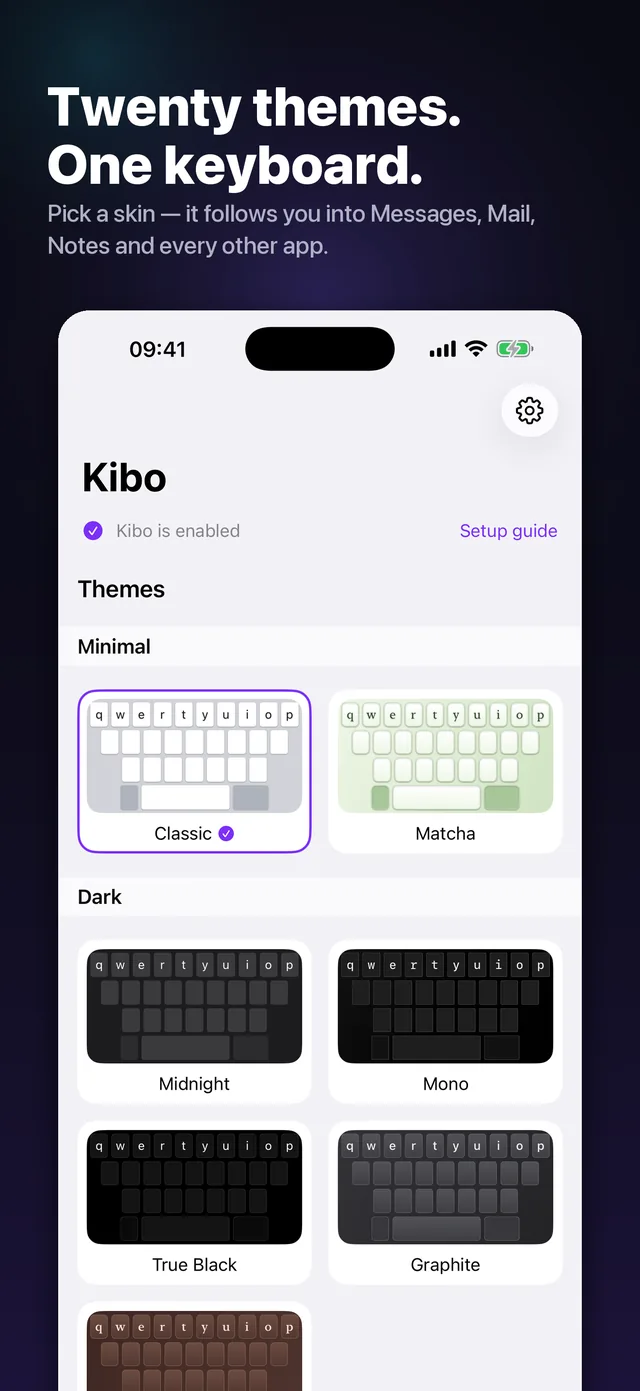
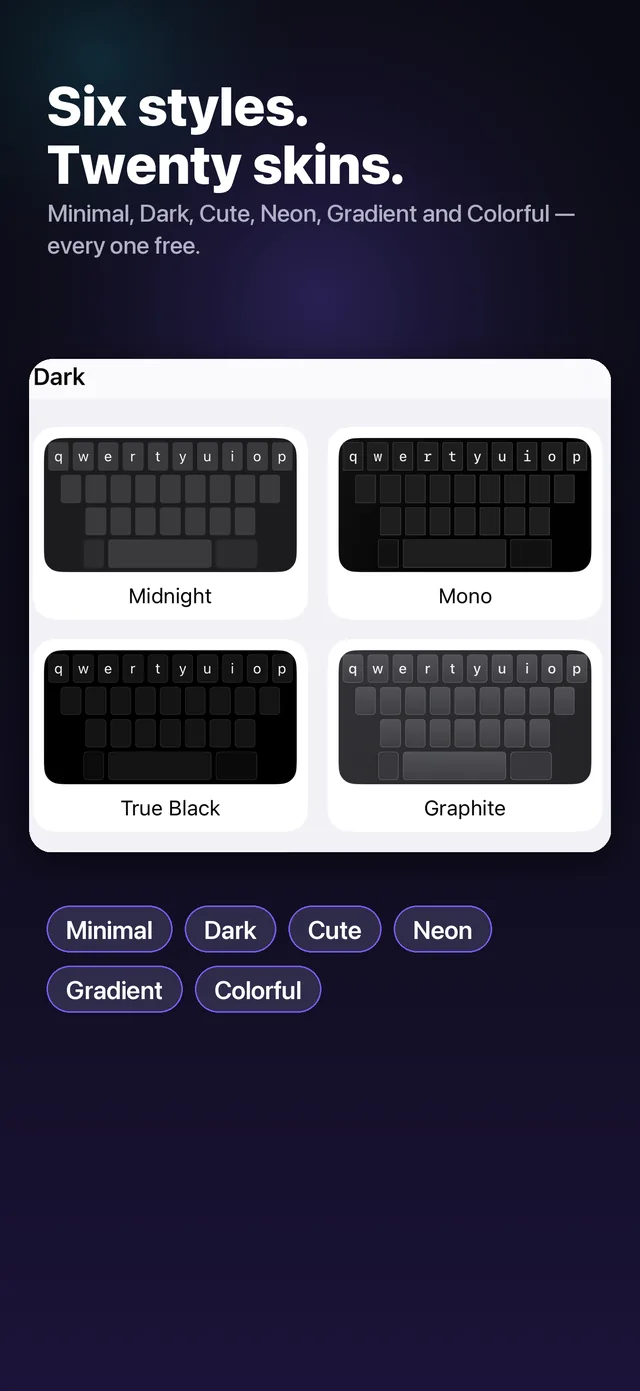
Minimal, Dark, Cute, Neon, Gradient, Colorful and drawn patterns — stars, hive, polka. Each one sets the backdrop, the key fill, the pressed state, the corner radius and the text colour, so a theme reads as a keyboard rather than a tinted screenshot. Pick one and it appears in every app you type in.
RGB backlight, on a phone
Effects split between the ones that answer a keypress and the ones that just run. Press a key and Reactive Glow blooms under it, Ripple pushes a ring outward, Confetti Burst throws sparks. Leave it alone and Rainbow Wave, Fire, Meteor or Aurora keep moving. Continuous effects run on one 30fps timer and stop the moment the keyboard hides. A few of them: Reactive Glow · Ripple · Confetti Burst · Rainbow Wave · Starlight · Fire · Meteor · Aurora ….
Emoji, kaomoji and skin tones
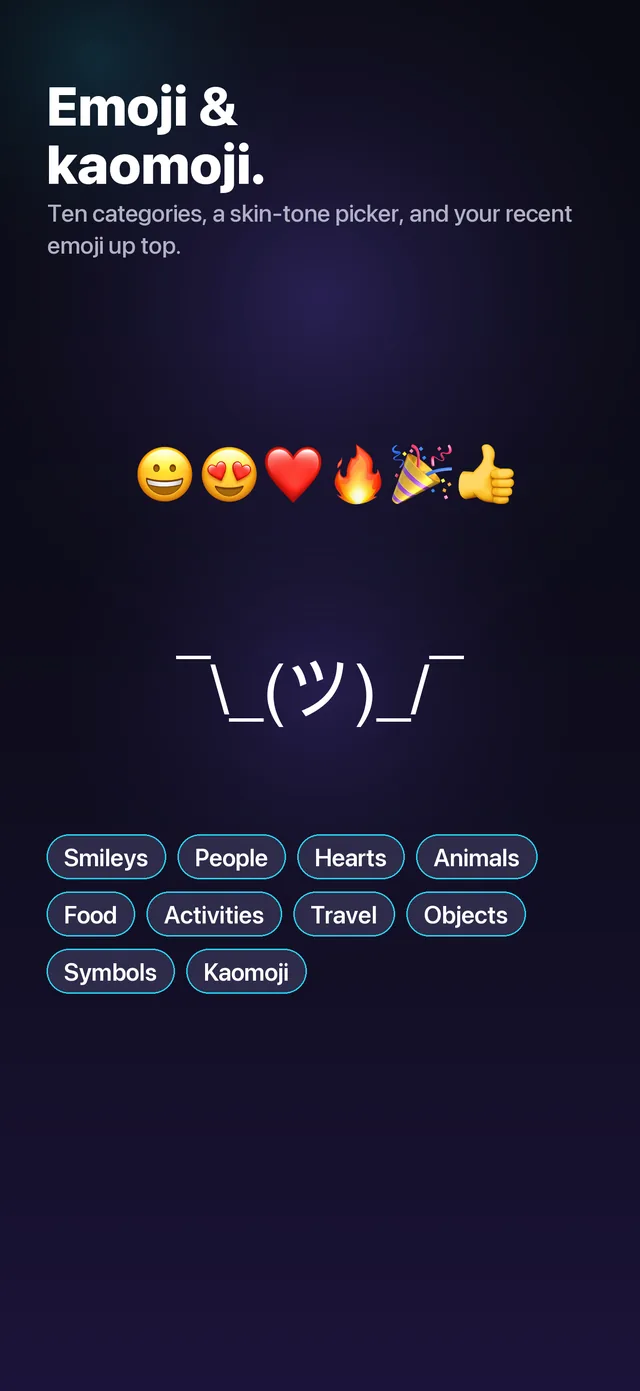
Tabbed sections including a full kaomoji panel, ¯\_(ツ)_/¯ and friends. Recents sit at the front, section headers stick while you scroll, and skin-tone variants are one long-press away. All text, no image assets — which is what keeps the keyboard inside its memory budget.
Fancy text styles
Bold, Italic, Bold Italic, Script, Double-struck, Mono, Small Caps, Wide, Circled, Squared, Upside Down and Strikethrough. Honest caveat: these are Unicode characters, not fonts, and Unicode is incomplete. Small Caps has no Q, Squared has no lowercase set. Kibo maps every letter it can and leaves the rest legible instead of drawing a tofu box — and numbers, punctuation and emoji always pass through untouched.
Typing help that keeps up
Word suggestions and Damerau-Levenshtein autocorrect (teh → the) with common words weighted forward, up to 12 candidates you can scroll sideways, plus next-word prediction so the bar still has something to say right after you press space.
30 languages, three of them composed
English, Spanish, Portuguese, French, German, Italian, Dutch, Polish, Turkish, Swedish, Danish, Norwegian, Finnish, Czech, Hungarian, Romanian, Indonesian, Vietnamese, Russian, Ukrainian, Serbian, Greek, Hebrew, Arabic, Persian, Hindi, Thai, Korean, Japanese and Simplified Chinese. Korean assembles jamo into syllables, Japanese turns romaji into kana, Chinese takes pinyin and offers characters.
Snippets and secure entries
Save the address, the email signature, the reply you send twenty times a week, and drop it into any app from the keyboard. Card and ID numbers go in a separate Keychain-backed list that shows them masked.
Your own photo behind the keys
Pick a photo and it becomes the backdrop, with a dim slider so the keycaps stay readable. The app downsamples it once on import — the keyboard extension never touches the full-size image, because a 48MB decode would get the keyboard killed mid-sentence.
Shuffle
Three independent switches for theme, sound and lighting. A new combination is rolled when the keyboard appears, never while you are typing, and your hand-picked settings are stored separately so turning shuffle off puts you back where you were.